
Start with a finished script
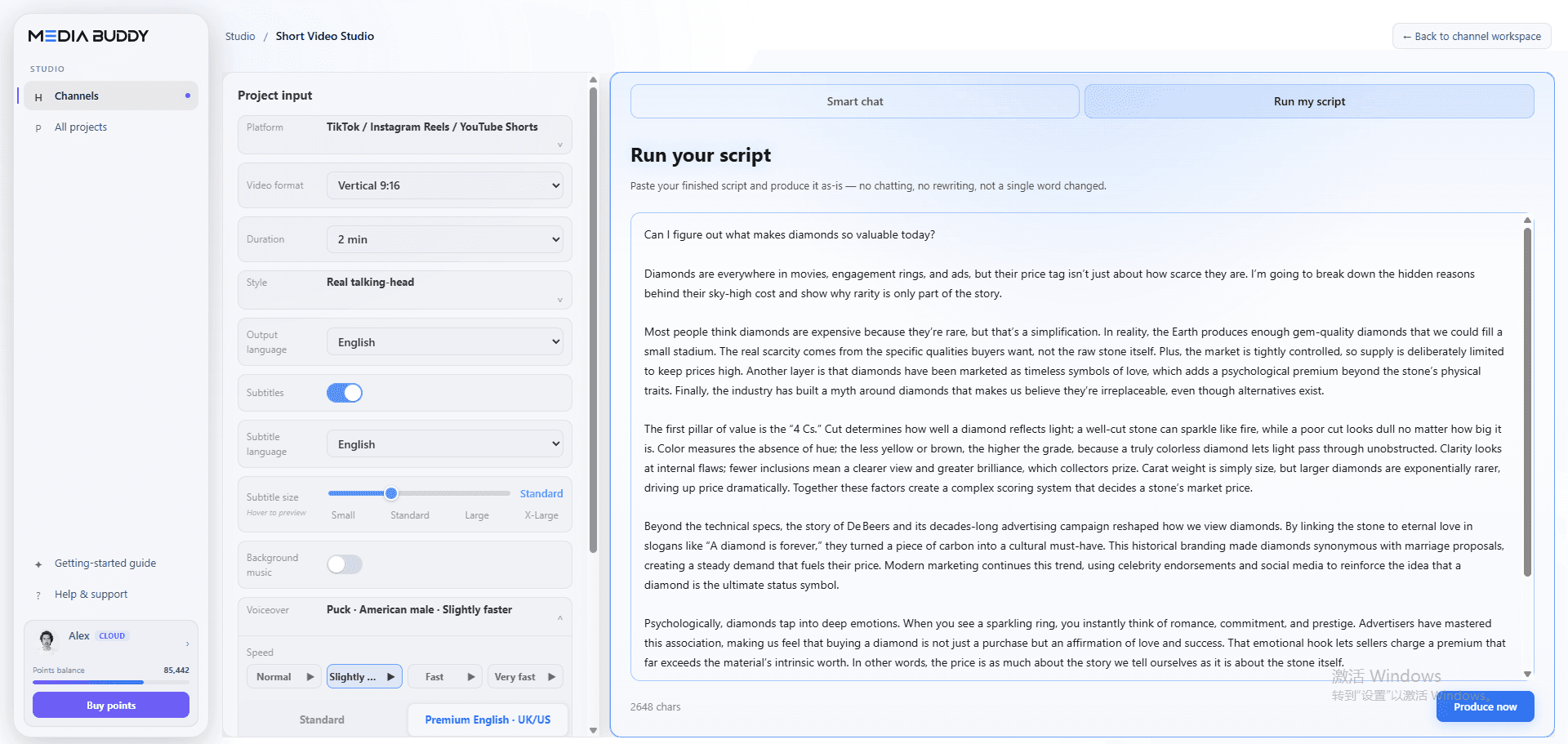
Use a complete narration when the wording and story order already matter.
Documented workflow example
This example shows how Media Buddy turns an English knowledge-video script about diamond pricing into a vertical video. It breaks the narration into visual beats and matches them with real, licensable B-roll footage, then keeps the result available for editorial review.
Last updated: August 28, 2026
Example source material
The source is an original English knowledge-video script discussing diamond value, the 4Cs, supply, marketing, and consumer perception. This page documents the production workflow; it does not present the script’s subject matter as a Media Buddy product claim.
“Diamonds are everywhere in movies, engagement rings, and ads, but their price tag isn’t just about how scarce they are.”
Use a complete narration when the wording and story order already matter.
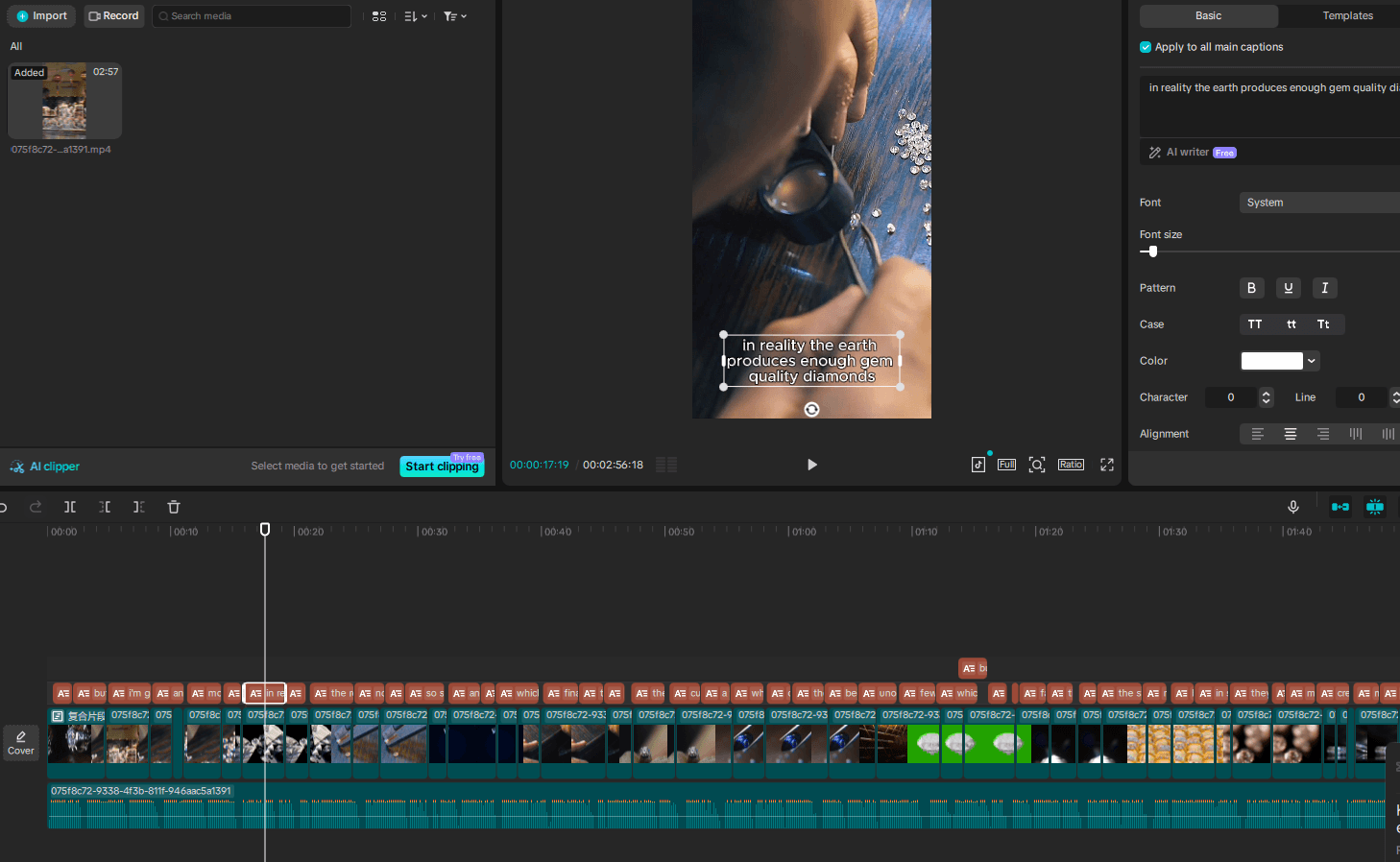
Each visual beat is matched to the idea being explained, not simply to a repeated keyword.
Review the B-roll timeline before export and keep the finished video as an editable production output.
The example begins with a finished English script about why diamonds are valuable. The original story and wording remain the creative starting point.
Media Buddy maps the narration to supporting moments: diamonds, grading details, jewelry, and other relevant visual ideas.
The creator can inspect the assembled timeline, captions, pacing, and footage choices before export.
The finished example is a captioned 9:16 knowledge video ready for a public video platform.
For YouTube creation, Media Buddy can match real B-roll footage that is licensable for use under the applicable terms. Availability and usage scope depend on the applicable terms. This page does not identify footage suppliers or make a blanket copyright-free claim.
No. This workflow uses AI to understand the script and arrange supporting B-roll. The example focuses on matching real, licensable footage to the narration rather than generating every shot from scratch.
Yes. A finished narration can be the starting point when creators want to preserve their own wording, structure, and editorial direction.
Yes. The workflow includes a review stage for the assembled timeline, captions, pacing, and footage choices before export.
It is designed for knowledge-video creators, faceless YouTube channels, agencies, and anyone who spends too much time finding and placing supporting shots manually.